
20 minutes (mostly waiting)

Installing the Windows register

Insert the USB stick, double-click, done

Every Hebtrek Windows register ships with a USB stick containing one installer file. It downloads Hebtrek Connect, sets the register to kiosk mode and links it to your store. You only enter the PIN from the letter.

What you need

  • The register PC or touchscreen, connected to power and internet
  • The USB stick from the box
  • The PIN from the letter or WhatsApp message from Hebtrek
  • A keyboard (installation only)
Installing the Windows register: Connect the registerStep 1 / 7

Connect the register

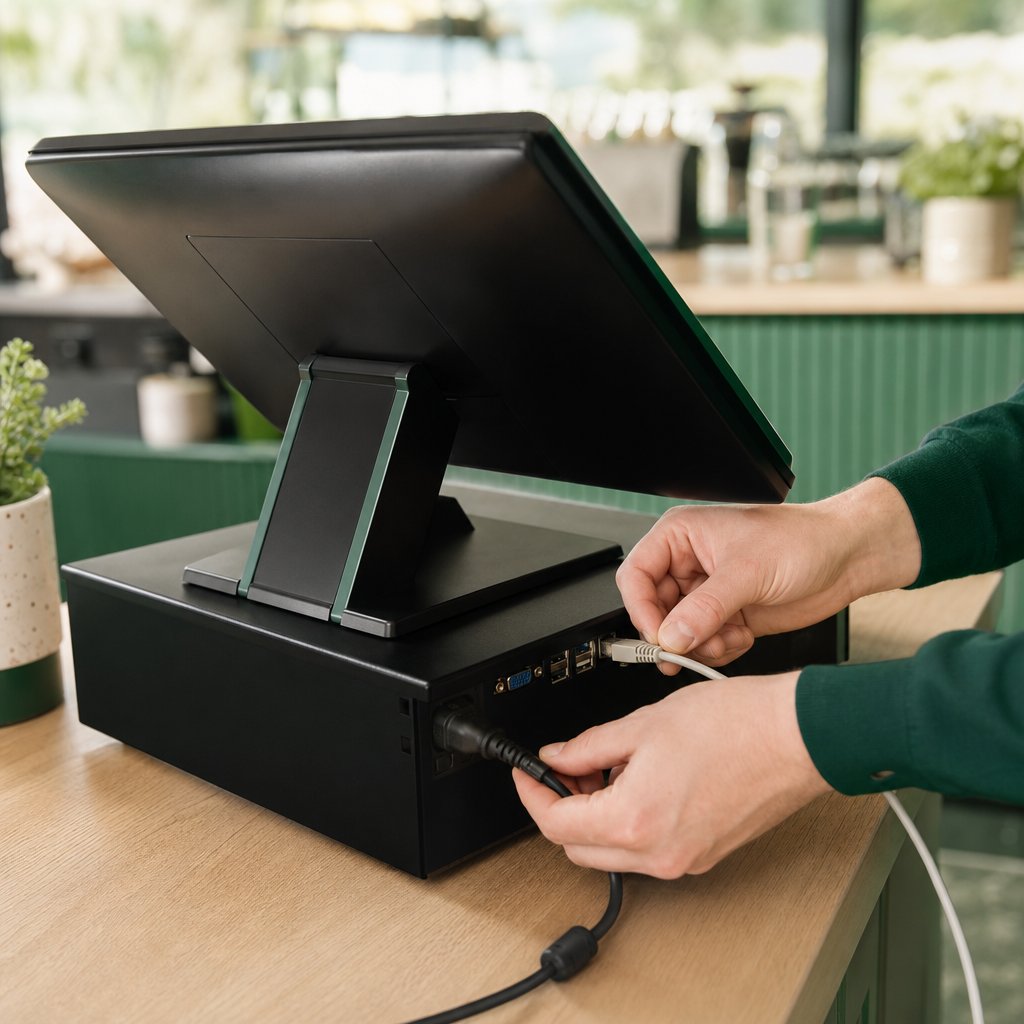
Connect the register PC to power and internet. An ethernet cable is most reliable; wifi also works, pick your store network during Windows setup.

Temporarily connect a keyboard and mouse. After installation you no longer need them, the register runs entirely on touch.

Quick check

  • Power connected
  • Internet works
  • Keyboard and mouse connected

Common mistakes

The cmd file opens in Notepad

Right-click the file and choose "Run as administrator".

Installation hangs on downloading

Check the internet connection. Close the window, restart the register and double-click START-HIER again.

The PIN is not accepted

A PIN is valid for 24 hours after sending. Request a new one via WhatsApp.

Windows does not start the register app

Sign in with the Windows account "kassa" (no password). Kiosk mode then starts automatically.

Need help?

Stuck? We help you right away, remotely if needed. Weekdays from 9 to 18h.