
15 minutes

Android tablet with Hebtrek POS

From box to first receipt in fifteen minutes

The tablet arrives with Hebtrek Connect pre-installed in kiosk mode. Nothing to download: plug it in, pick your wifi and link the register to your store.

What you need

  • The tablet and the supplied charger
  • Your store wifi password
  • Your Hebtrek login (email address and password)
  • Optional: receipt printer and cash drawer
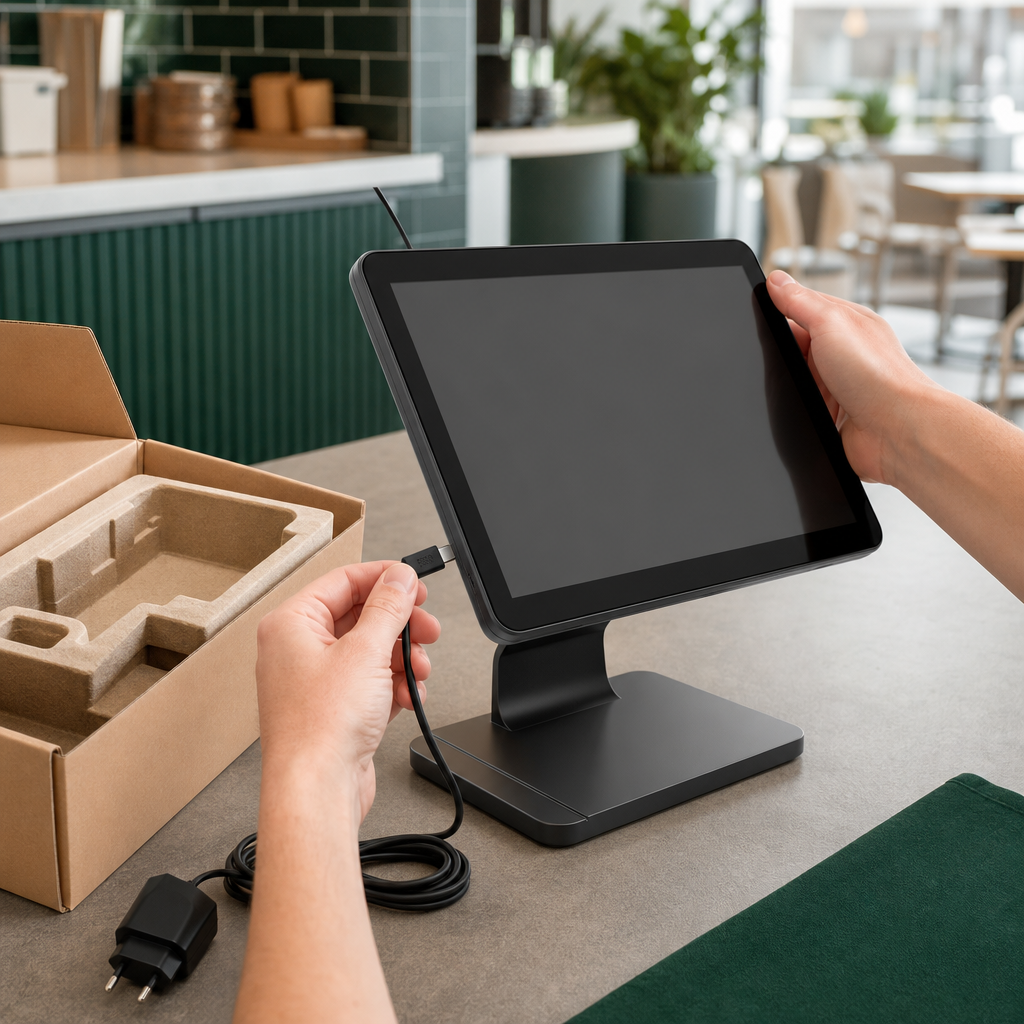
Android tablet with Hebtrek POS: Unpack and chargeStep 1 / 7

Unpack and charge

Take the tablet, charger and stand (if included) out of the box and check the screen for damage.

Connect the charger and let the tablet charge for at least fifteen minutes before the first start. Then place it in its final spot, close to a power socket.

Tip: Keep the tablet on the charger during opening hours. A register should never run out of power.

Quick check

  • Tablet without damage
  • Charger connected
  • Stand mounted (if included)

Common mistakes

The pairing screen stays after scanning

Check that you had the correct store open in the backoffice. Pair again via "Link register" using the 6-digit code.

The printer is not found

Put printer and tablet on the same network, not a guest network. Restart the printer and search again.

The tablet turns off during service

The charger came loose. Use the supplied cable and keep it connected permanently.

Need help?

Stuck? We help you right away, remotely if needed. Weekdays from 9 to 18h.