
10 minutes

Setting up the label printer (Brother QL)

Product labels with name, ingredients and QR code

With the Brother QL label printer you print a label per product straight from the register: customer name, product name, description, nutrition facts and a QR code to your own website. Ideal for cups, trays and pre-packed products.

What you need

  • The Brother QL printer with power cord
  • A roll of 62 mm labels (continuous or die-cut)
  • Store wifi password, or a USB cable to a Windows register
Setting up the label printer (Brother QL): Load the label rollStep 1 / 6

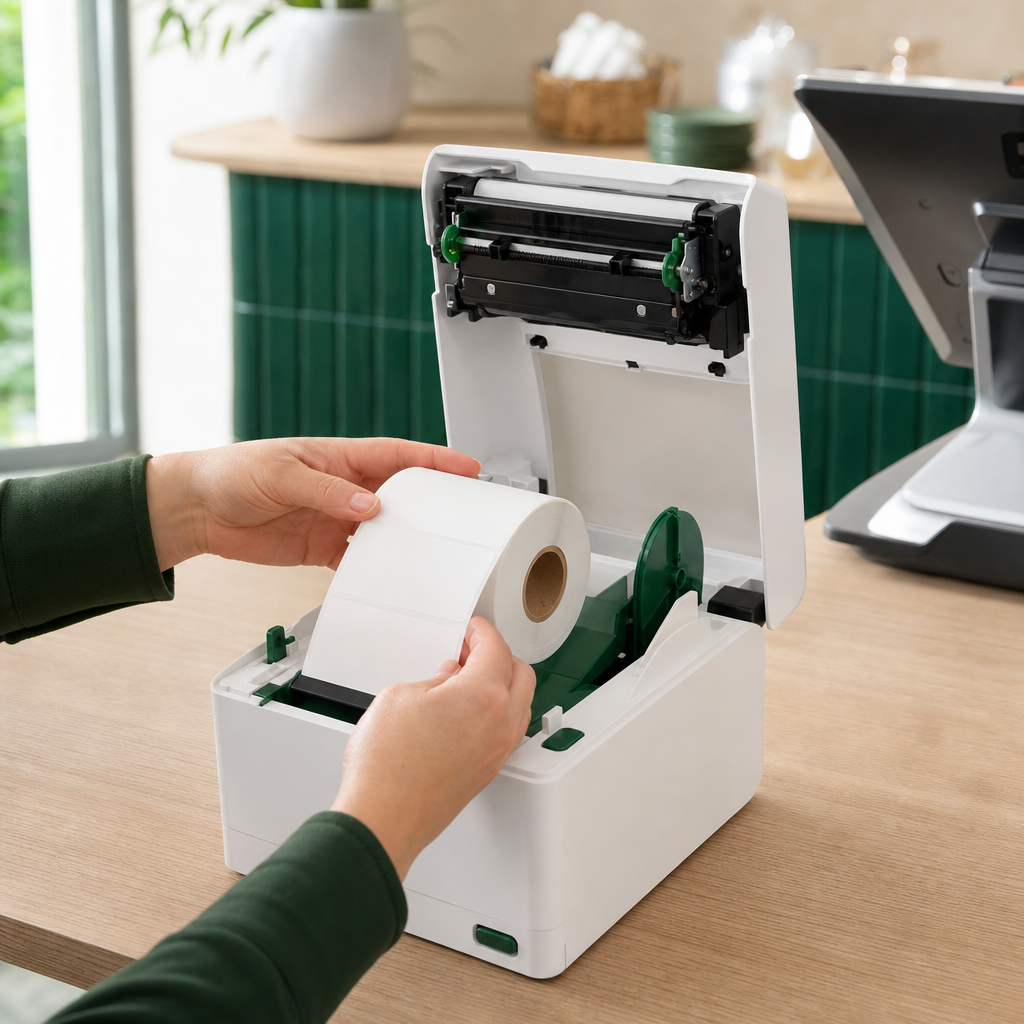
Load the label roll

Open the printer lid and place the label roll in the holder. Feed the end of the roll through the slot at the front, print side up.

Close the lid. The printer feeds the label to the correct start position automatically.

Tip: Use the 62 mm roll supplied with the printer. Other widths are not recognised by the register.

Quick check

  • Roll in the holder
  • End fed through the slot
  • Lid closed

Common mistakes

The label is blank on the right or the text is rotated

Wrong roll type. Select the correct roll type (continuous or die-cut) in the register and print again.

The printer is not found

Check that the printer is on the same wifi network as the register. Restart the printer and search again.

The QR code does not work

The product has no page on your hebtrek.site yet. Set the product to visible in the backoffice.

Need help?

Stuck? We help you right away, remotely if needed. Weekdays from 9 to 18h.