
15 minutes

Hebtrek Connect on your own hardware

Windows, Android or iPad: install the register software yourself

Already own a PC, tablet or iPad? Then you can install Hebtrek Connect yourself. The software is free for Hebtrek customers. Pick your device below and follow the steps; pairing works the same on every device using the QR code from the backoffice.

What you need

  • A Windows PC (Windows 10 or newer), Android tablet (Android 10 or newer) or iPad
  • Internet connection
  • Your Hebtrek login (email address and password)
Hebtrek Connect on your own hardware: Choose your deviceStep 1 / 6

Choose your device

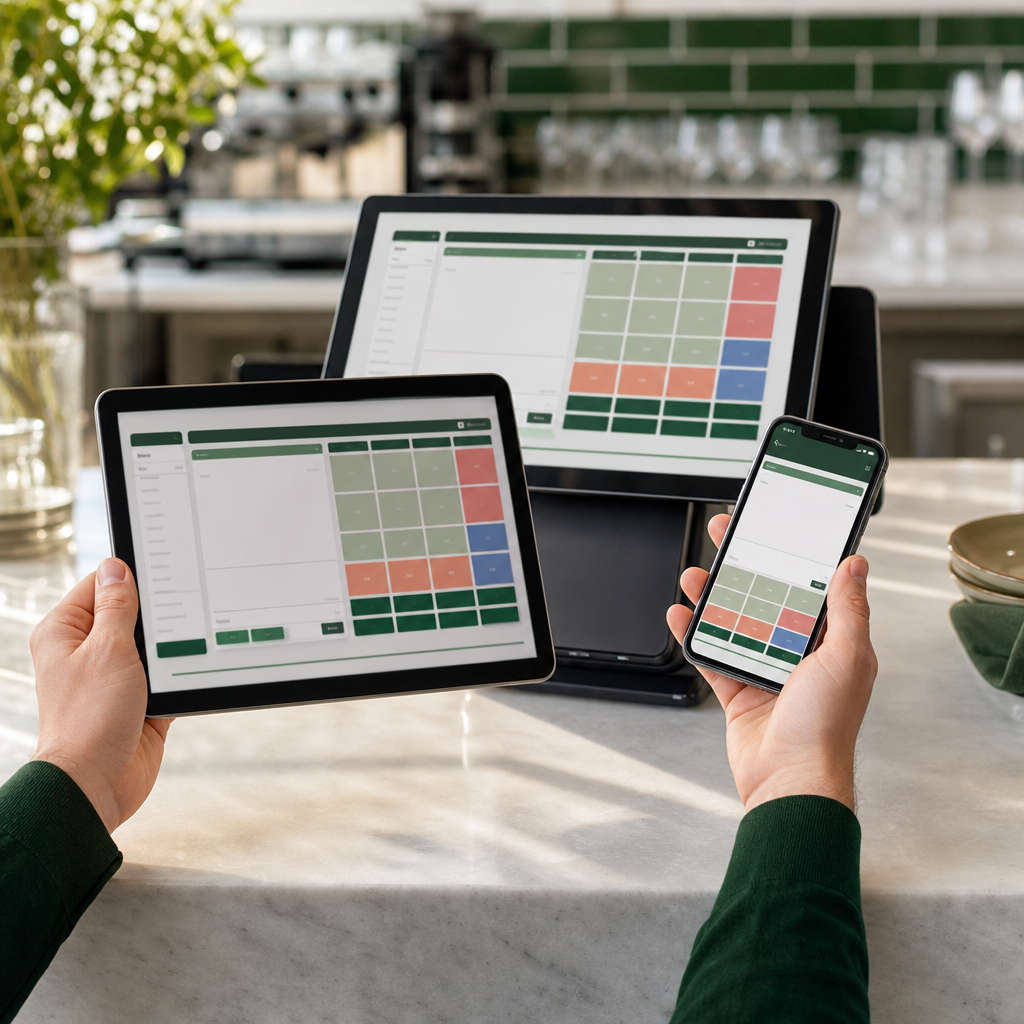
Hebtrek Connect runs on Windows, Android and iPad. Windows offers the most options (USB printers, cash drawer, card reader). Android and iPad are ideal as a mobile or second register.

Preferably use a device that only serves as a register, so nobody opens other apps in between.

Quick check

  • Device chosen
  • Device on the store network

Common mistakes

The app opens but no pairing screen appears

Check the internet connection and fully close the app. On reopening the pairing screen appears.

The 6-digit code does not work

The code changes every few minutes. Read it again from the screen and try immediately.

The register is already linked to another store

Unlink the register in the backoffice under Fleet at the old store and pair again.

Need help?

Stuck? We help you right away, remotely if needed. Weekdays from 9 to 18h.